
WP Rocket Settings for Wistia Compatibility
Ensure smooth playback by excluding Wistia's JavaScript from File Optimizations
WP Rocket is a popular plugin for optimizing the performance of WordPress sites. While it offers a convenient way to boost the speed of your pages, WP Rocket's file optimization features can break Wistia embeds if not configured correctly. To successfully embed videos on sites running the WP Rocket plugin, Wistia's JavaScript must be excluded from file optimizations in your plugin settings.
Wistia's JavaScript files, such as player.js (Aurora) and E-v1.js (Vulcan), must not be modified, delayed, or combined/re-hosted. Any of these modifications to Wistia JS can break functionality or prevent embeds from loading on your pages.
Exclude Wistia's scripts from JavaScript file optimizations
The following scripts should be excluded from any WP Rocket modification:
-
https://fast.wistia.com/player.jsRequired for all Aurora embeds*
-
https://fast.wistia.com/assets/external/E-v1.jsRequired for all legacy embeds*
-
https://fast.wistia.net/assets/external/transcript.jsRequired for Transcript embeds
-
https://fast.wistia.com/assets/external/channel.jsRequired for Channel embeds
-
https://fast.wistia.net/assets/external/form.jsRequired for Webinar Registration Forms
*Includes video, audio, and Webinar embeds.
Not sure which player you're using? Aurora embeds use a <wistia-player> component and player.js. Legacy embeds use E-v1.js. Learn more about Aurora →
How to update your WP Rocket exclusion lists
-
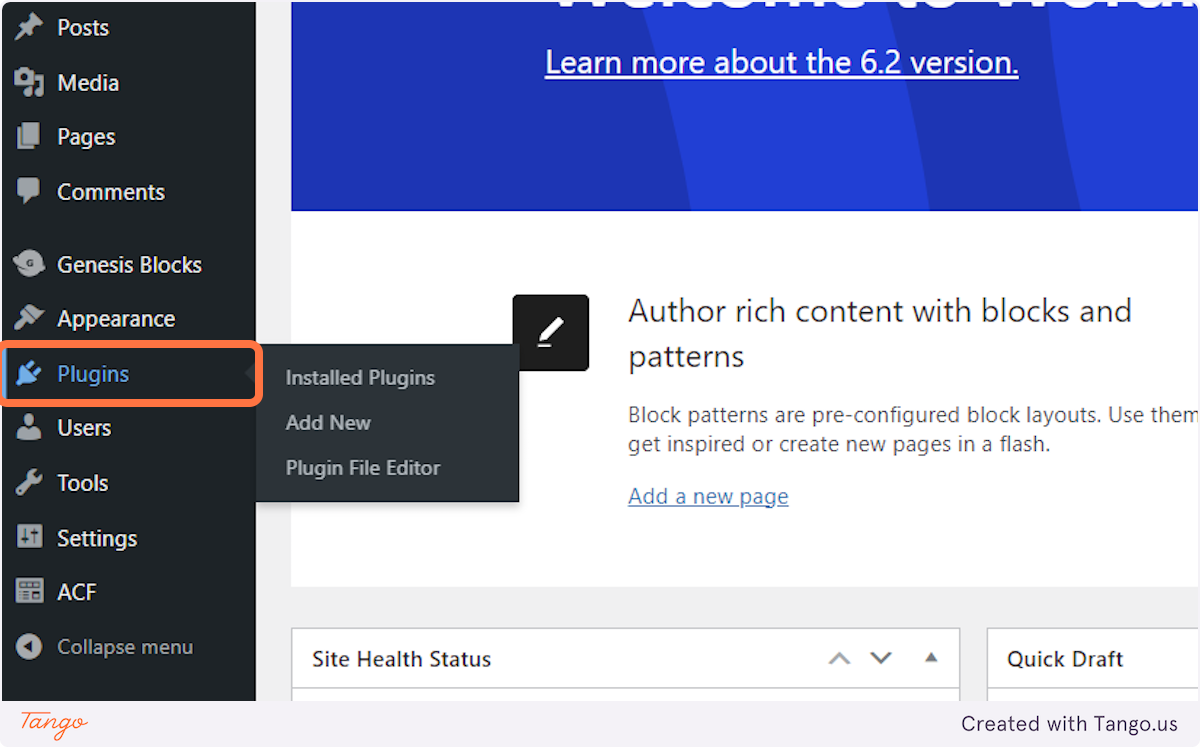
From your WP Admin page, go to "Plugins".
-
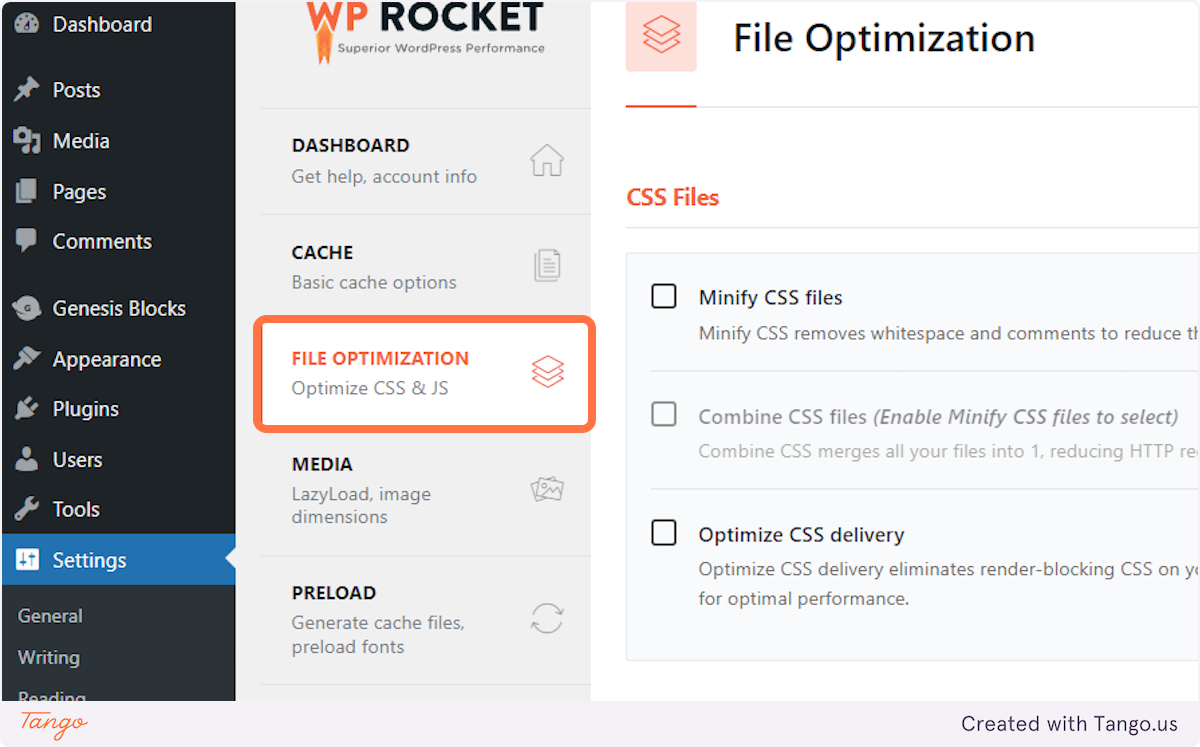
Find WP Rocket in the plugin list and select Settings, then go to File Optimization.
-
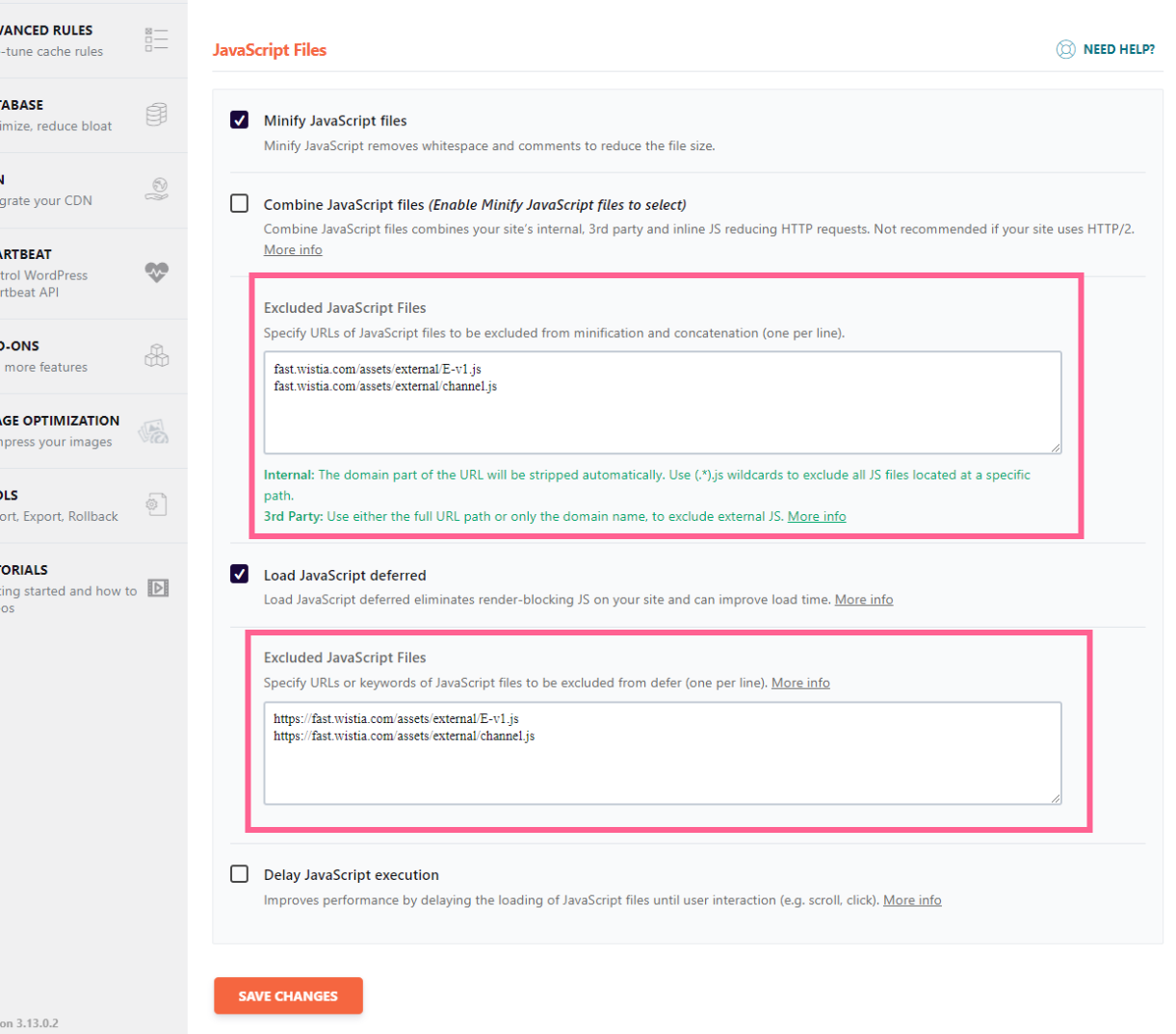
Under JavaScript Files, add the necessary Wistia scripts to each Excluded JavaScript Files list. These scripts must be excluded from any active JavaScript settings: Minify/Combine JavaScript, Load JavaScript Deferred, and Delay JavaScript execution.
-
Click Save Changes.
-
There may be a delay in seeing these settings take effect, which you can speed up by clearing the WordPress site cache and clearing your personal browser cache.